> ## Documentation Index
> Fetch the complete documentation index at: https://docs.cysmiq.com/llms.txt
> Use this file to discover all available pages before exploring further.
# Manage applications
> Group repositories into applications for aggregated vulnerability tracking and reporting.
## Overview
Applications let you group related repositories together. Once grouped, you can view aggregated vulnerability metrics, export a combined SBOM, and filter vulnerabilities by application.
## Prerequisites
* A Cysmiq workspace with connected repositories
* Permission to create applications
## Create an application
From the sidebar, select **Applications**. If you have no applications yet, the list will be empty.
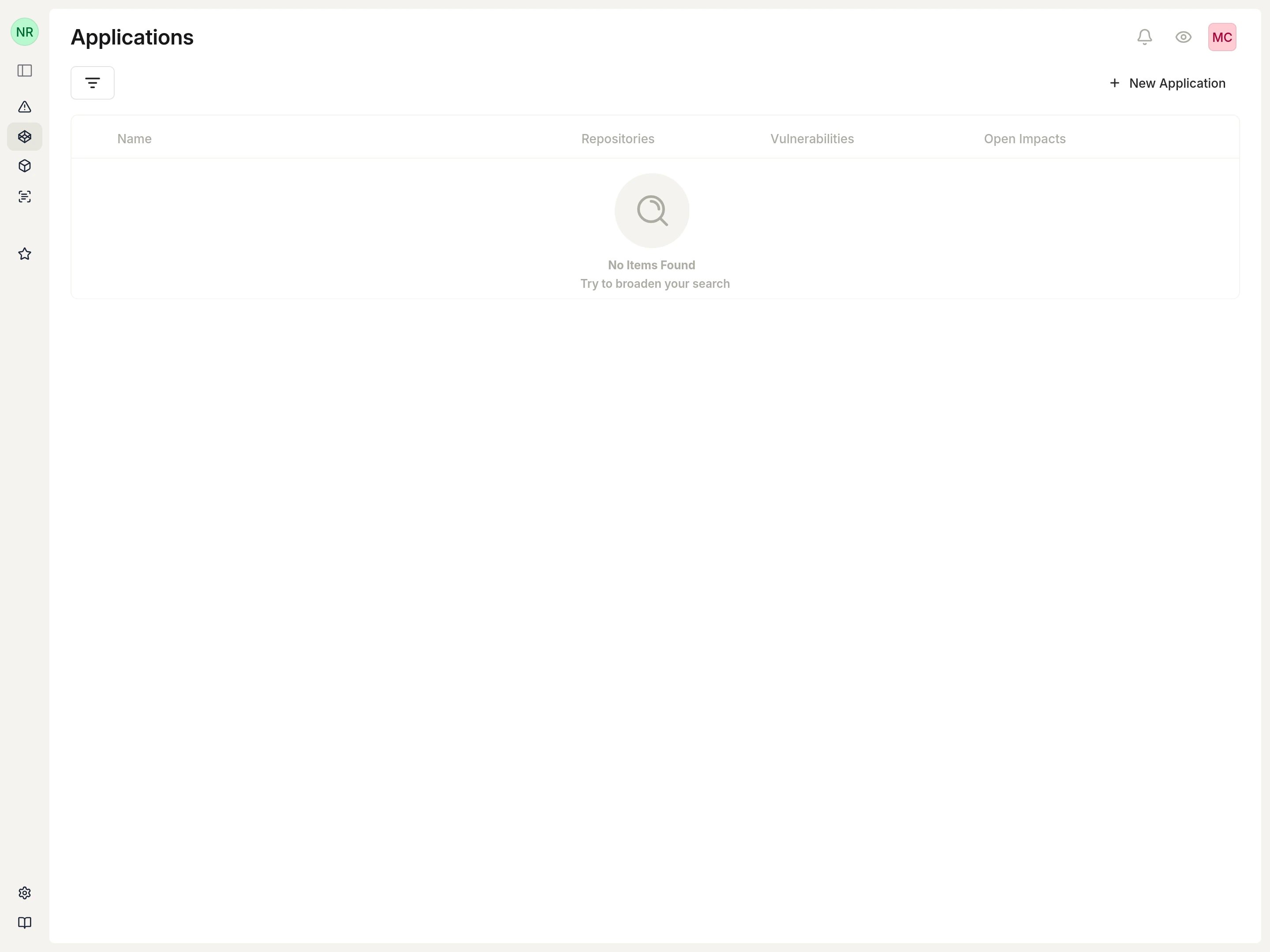 Select **New Application** to open the creation form.
Enter a **Name** for the application and an optional **Description** to help teammates understand its purpose.
Under **Select Assets**, choose the repositories to include. You can select multiple repositories from the dropdown.
Select **New Application** to open the creation form.
Enter a **Name** for the application and an optional **Description** to help teammates understand its purpose.
Under **Select Assets**, choose the repositories to include. You can select multiple repositories from the dropdown.
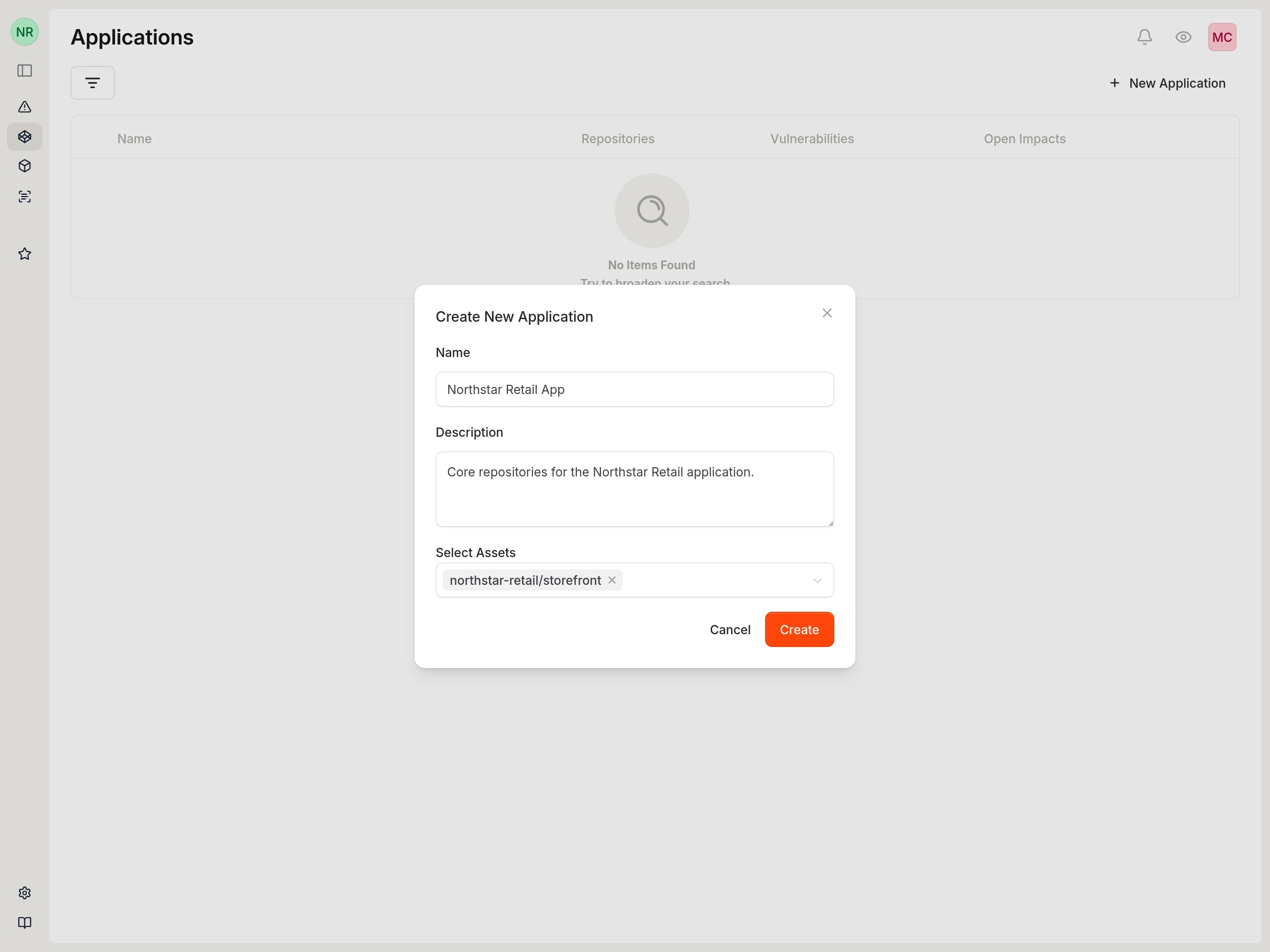 Select **Create** to save the application.
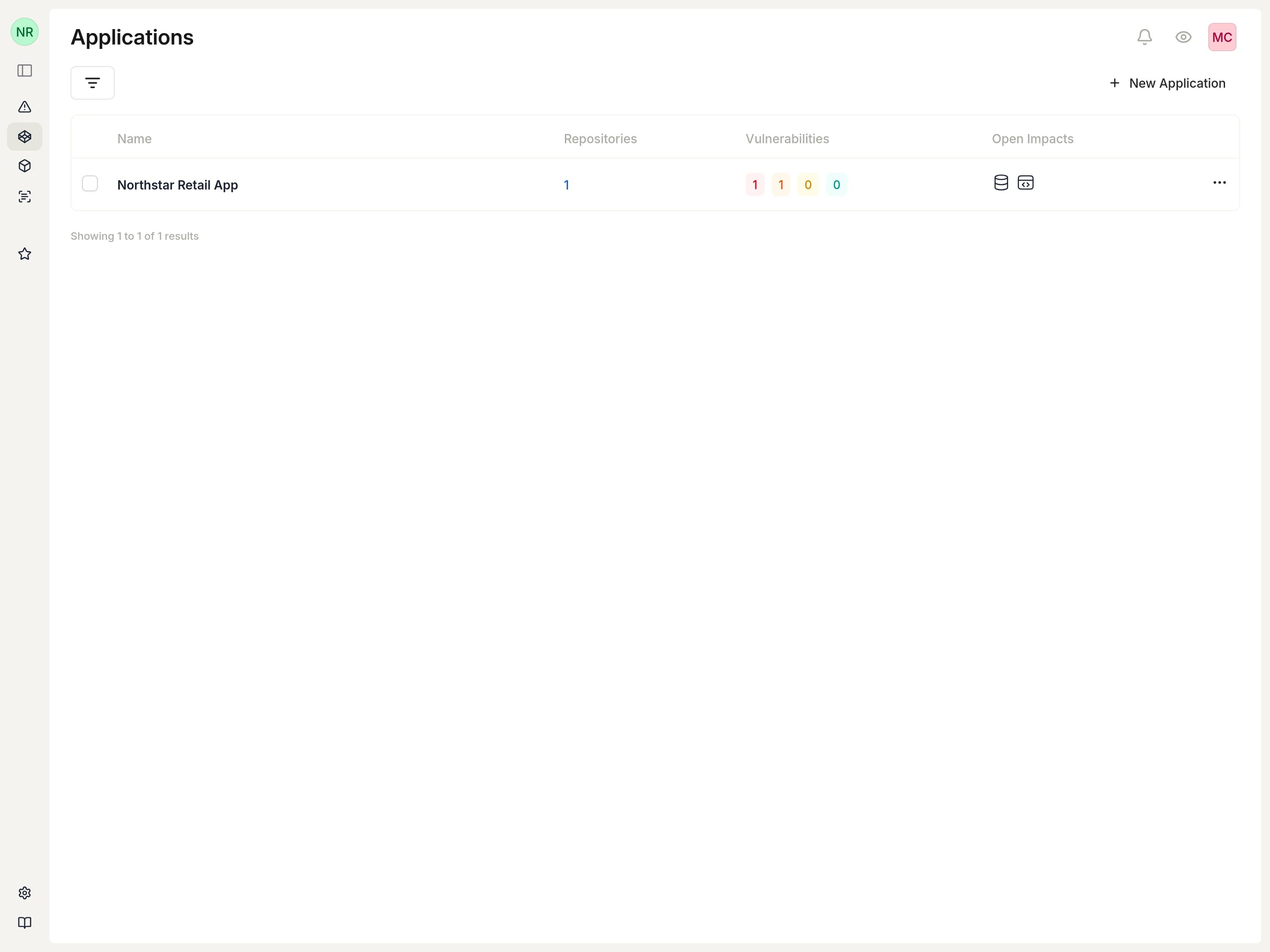
After the application is created, it appears in the list. Select the application to open it.
Select **Create** to save the application.
After the application is created, it appears in the list. Select the application to open it.
 ## View the application
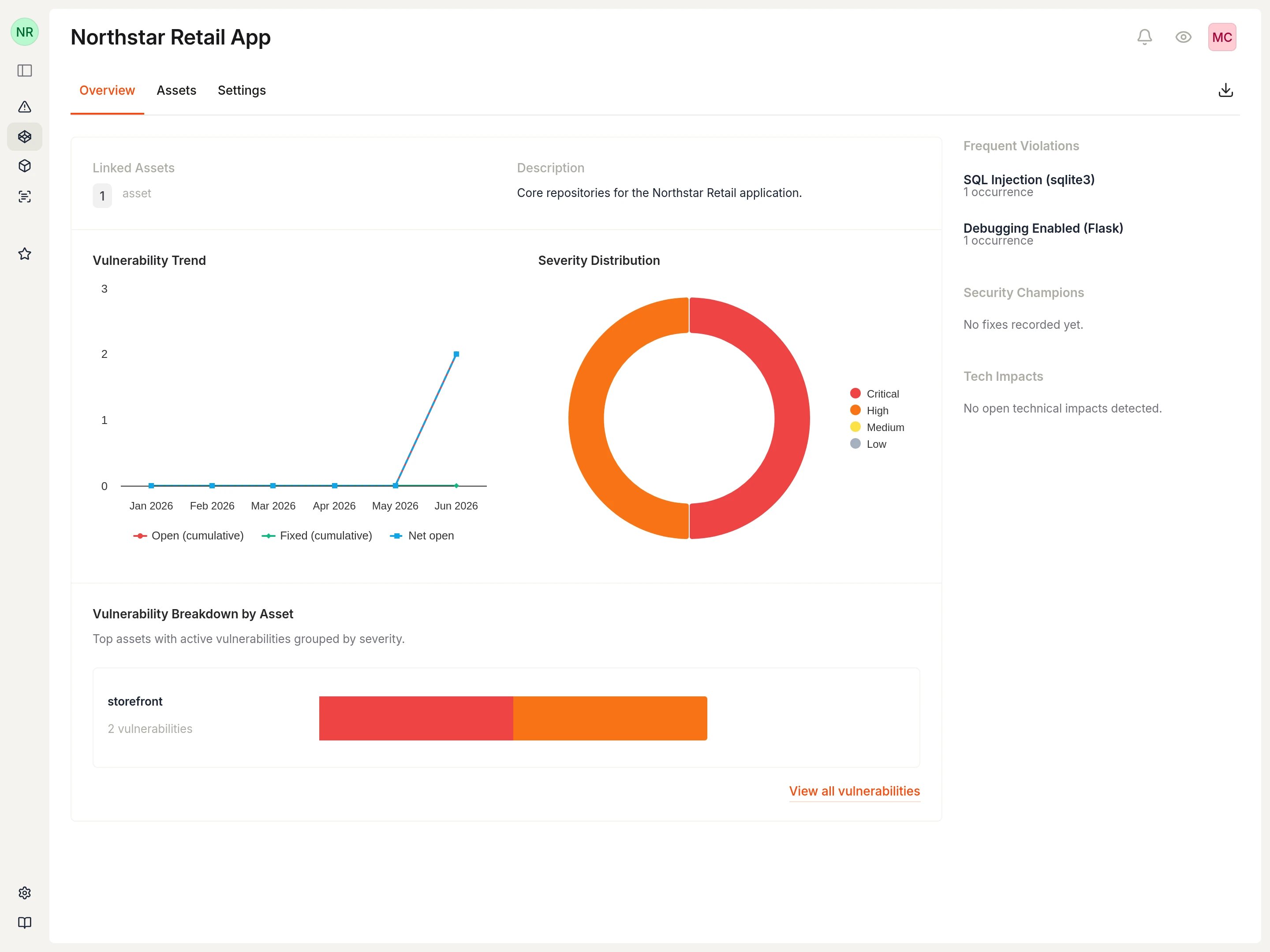
The application overview displays:
* **Linked Assets**: Number of repositories in the application
* **Vulnerability Trend**: Open and fixed vulnerabilities over time
* **Severity Distribution**: Breakdown by severity level
* **Vulnerability Breakdown by Asset**: Per-repository vulnerability counts
* **Frequent Violations**: Most common vulnerability types
## View the application
The application overview displays:
* **Linked Assets**: Number of repositories in the application
* **Vulnerability Trend**: Open and fixed vulnerabilities over time
* **Severity Distribution**: Breakdown by severity level
* **Vulnerability Breakdown by Asset**: Per-repository vulnerability counts
* **Frequent Violations**: Most common vulnerability types
 ## View application assets
Open the **Assets** tab to see all repositories linked to the application. Each row shows the repository name, type, vulnerability counts, and last scan time.
## View application assets
Open the **Assets** tab to see all repositories linked to the application. Each row shows the repository name, type, vulnerability counts, and last scan time.
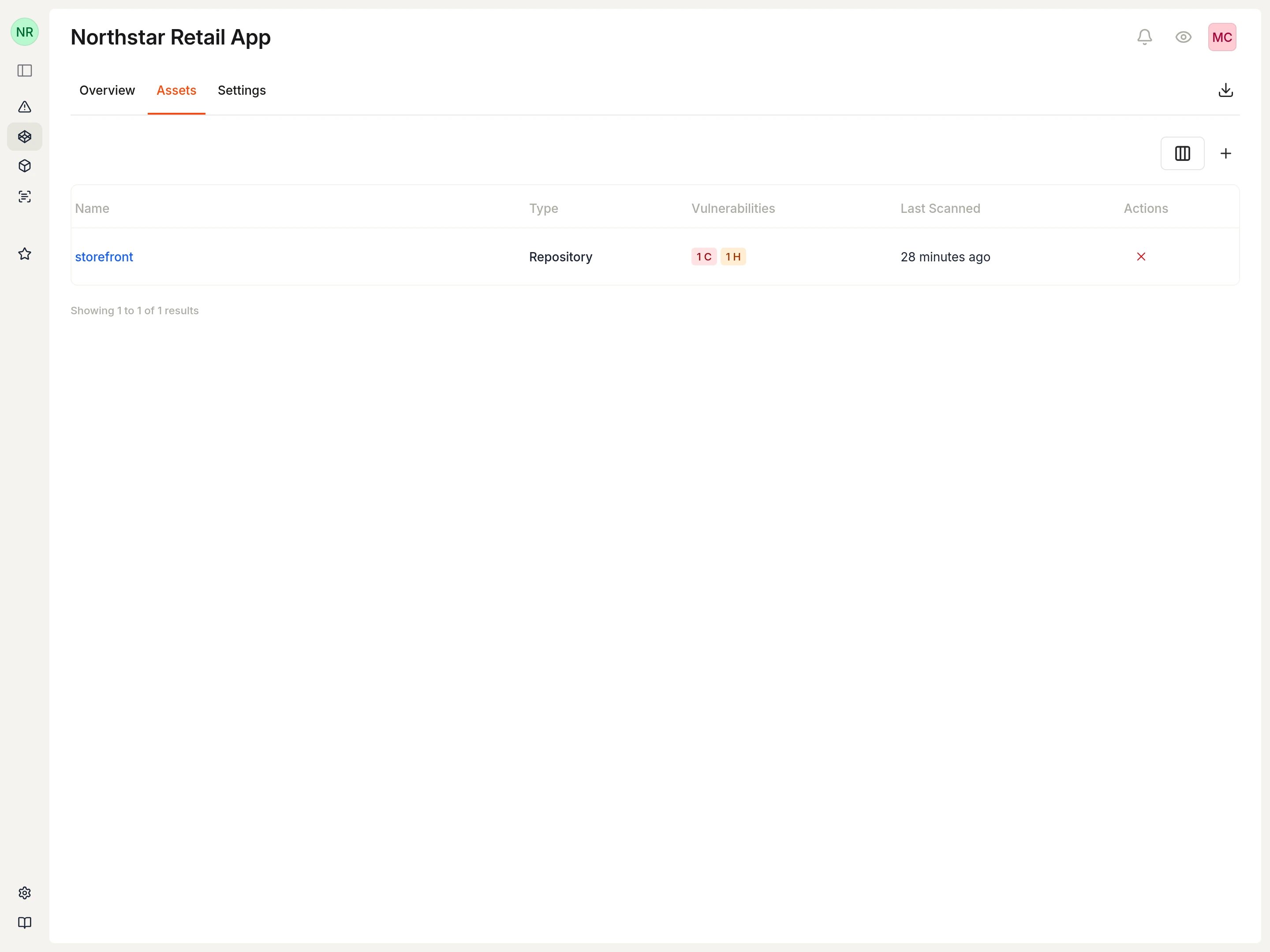 From this tab you can:
* Select the plus icon (Add assets) to link additional repositories
* Remove a repository by selecting the remove icon in the Actions column
## Edit or delete an application
Open the **Settings** tab to update the application name or description. Select **Save changes** to apply updates.
From this tab you can:
* Select the plus icon (Add assets) to link additional repositories
* Remove a repository by selecting the remove icon in the Actions column
## Edit or delete an application
Open the **Settings** tab to update the application name or description. Select **Save changes** to apply updates.
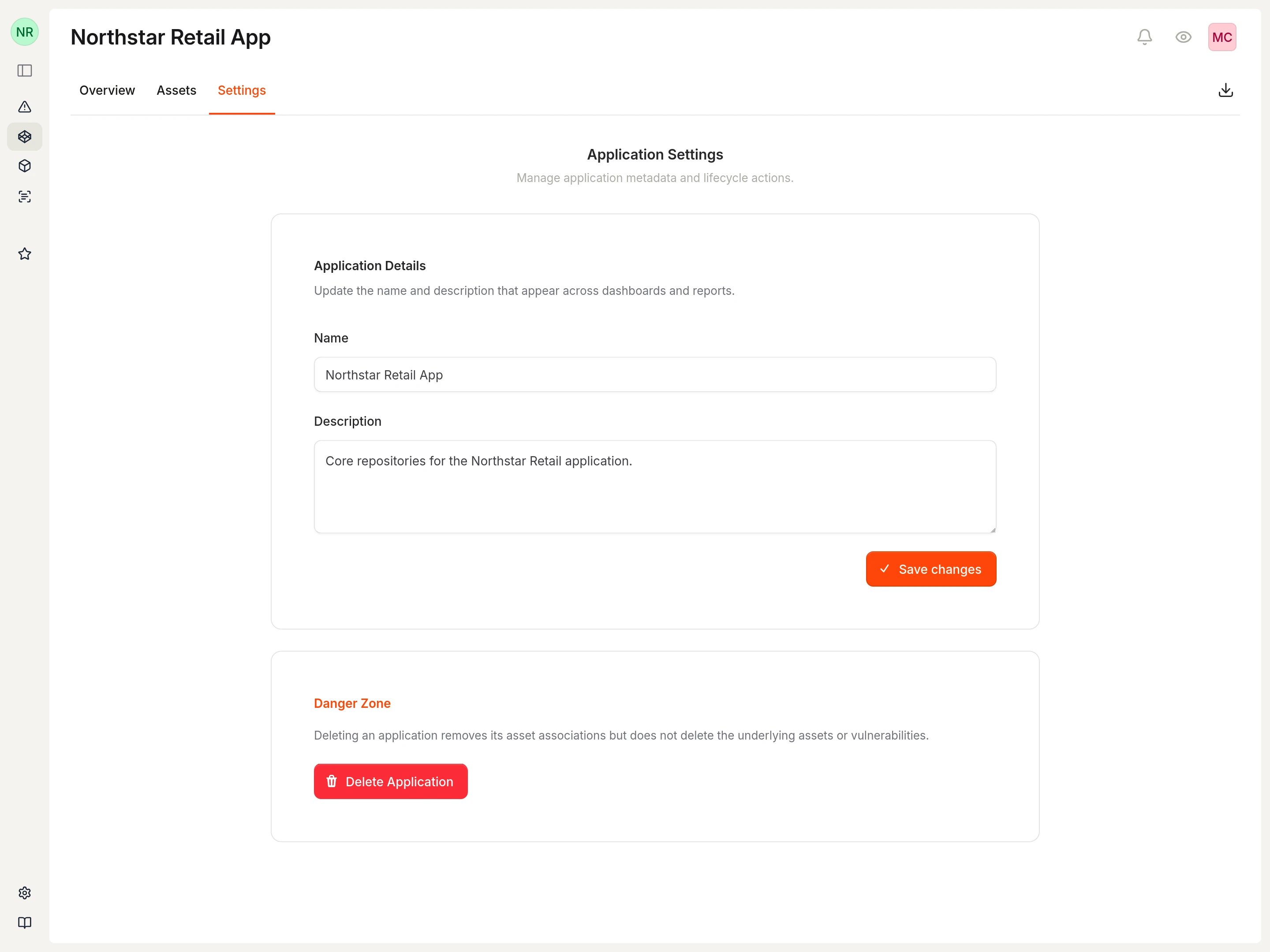 To delete an application, select **Delete Application** in the Danger Zone. Deleting an application removes the grouping but does not delete the underlying repositories or their vulnerabilities.
## Export an SBOM
From any application tab, select **Download SBOM** to export a software bill of materials that combines all repositories in the application.
## Related docs
* [Applications](/concepts/applications)
* [SBOMs](/concepts/sboms)
* [Assets](/concepts/assets)
To delete an application, select **Delete Application** in the Danger Zone. Deleting an application removes the grouping but does not delete the underlying repositories or their vulnerabilities.
## Export an SBOM
From any application tab, select **Download SBOM** to export a software bill of materials that combines all repositories in the application.
## Related docs
* [Applications](/concepts/applications)
* [SBOMs](/concepts/sboms)
* [Assets](/concepts/assets)