> ## Documentation Index
> Fetch the complete documentation index at: https://docs.cysmiq.com/llms.txt
> Use this file to discover all available pages before exploring further.
# Use saved filters
> Save, organize, and quickly access commonly used vulnerability filters.
## Overview
Saved filters let you quickly access commonly used filter combinations on the Vulnerabilities page. You can save custom filters, add filters to your favorites for quick access, and use built-in system filters for common workflows.
## System filters
Cysmiq includes built-in system filters for common vulnerability views:
* **Assigned to me**: Vulnerabilities assigned to your account
* **Exploitable**: Confirmed exploitable vulnerabilities
* **High Priority**: Critical and high severity vulnerabilities
* **Open & In Progress**: Vulnerabilities in active lifecycle stages
## Save a custom filter
On the Vulnerabilities page, use the filter button to add one or more filters. You can combine multiple filter types such as CWE, Organization, Severity, or Type.
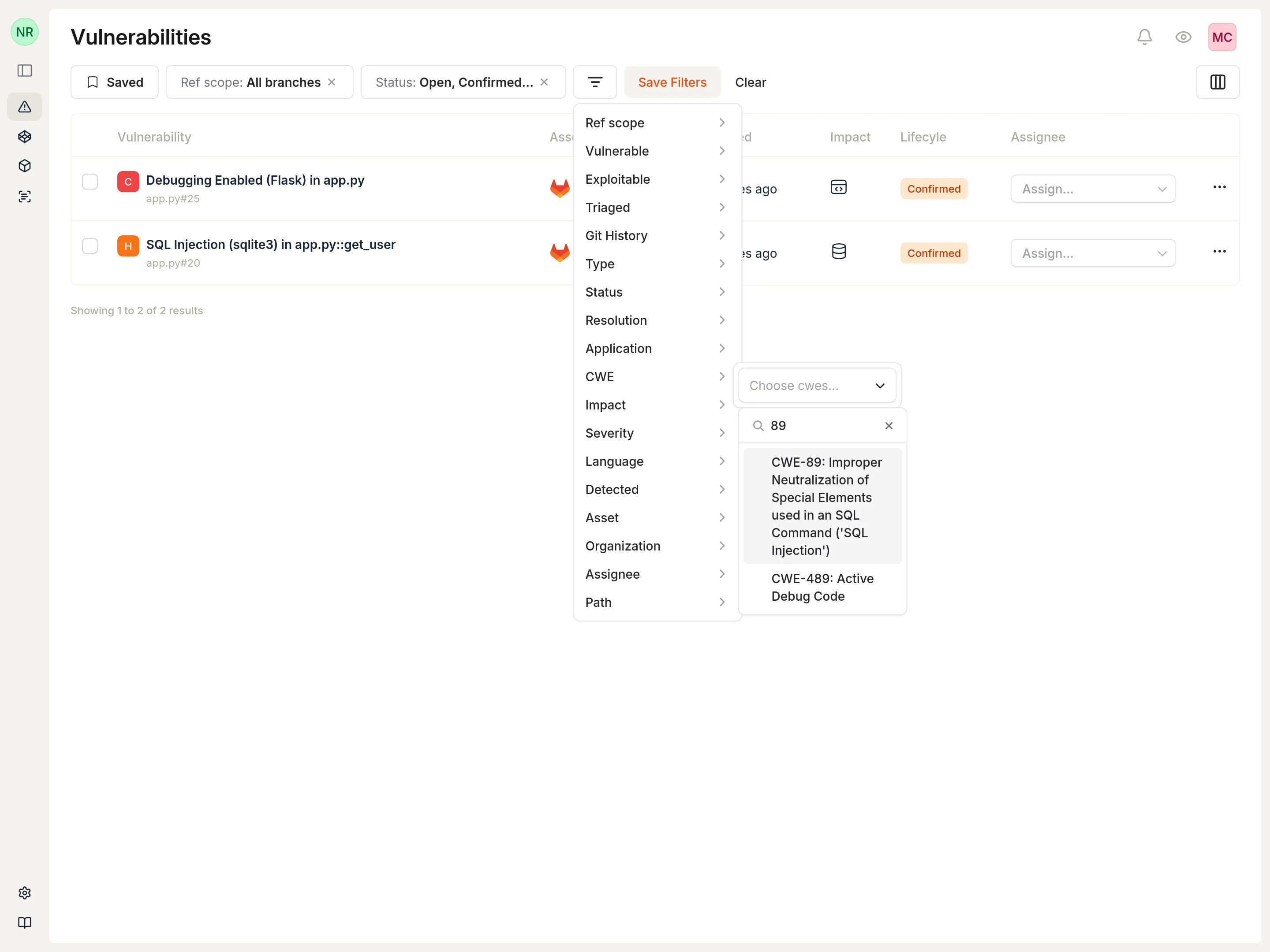
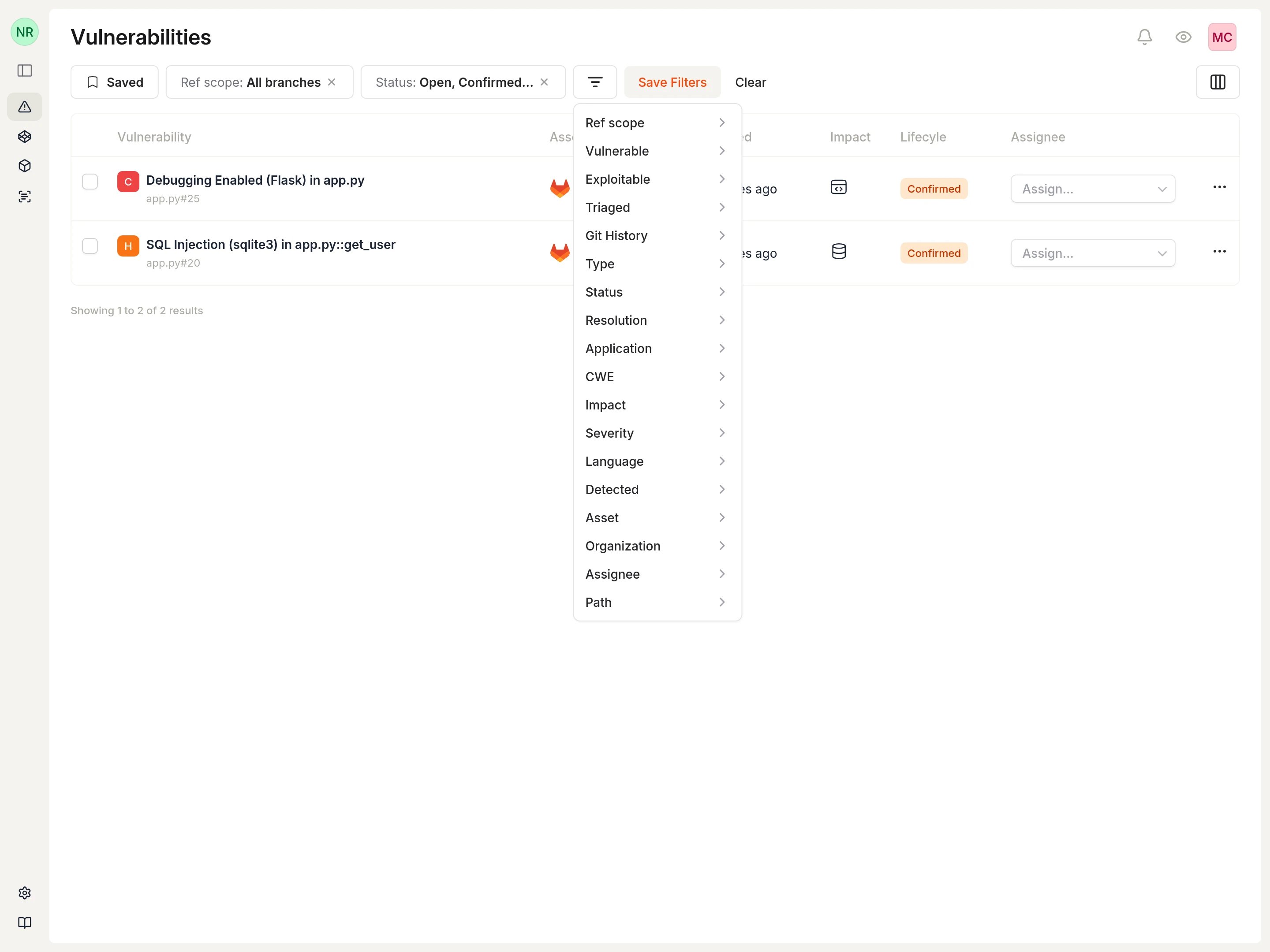 For example, to filter for all SQL Injection vulnerabilities in a specific organization:
1. Select **CWE** from the filter menu
2. Search for "89" and select **CWE-89: SQL Injection**
3. Select **Organization** and choose your target organization
For example, to filter for all SQL Injection vulnerabilities in a specific organization:
1. Select **CWE** from the filter menu
2. Search for "89" and select **CWE-89: SQL Injection**
3. Select **Organization** and choose your target organization
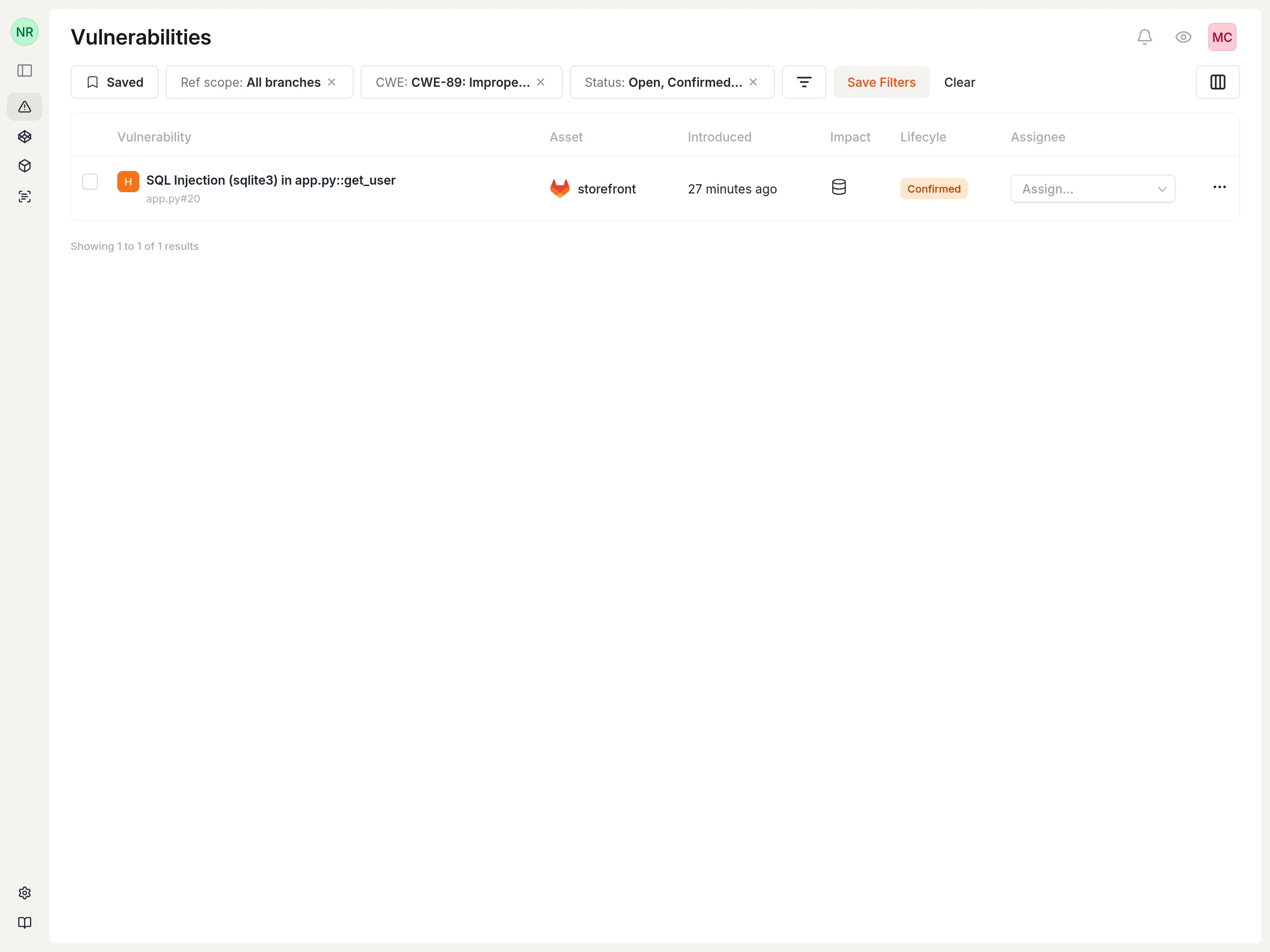
 After applying filters, the vulnerability list updates to show only matching results. Active filters appear as pills in the filter bar.
 Select **Save Filters** to open the save dialog. Enter a descriptive name for your filter.
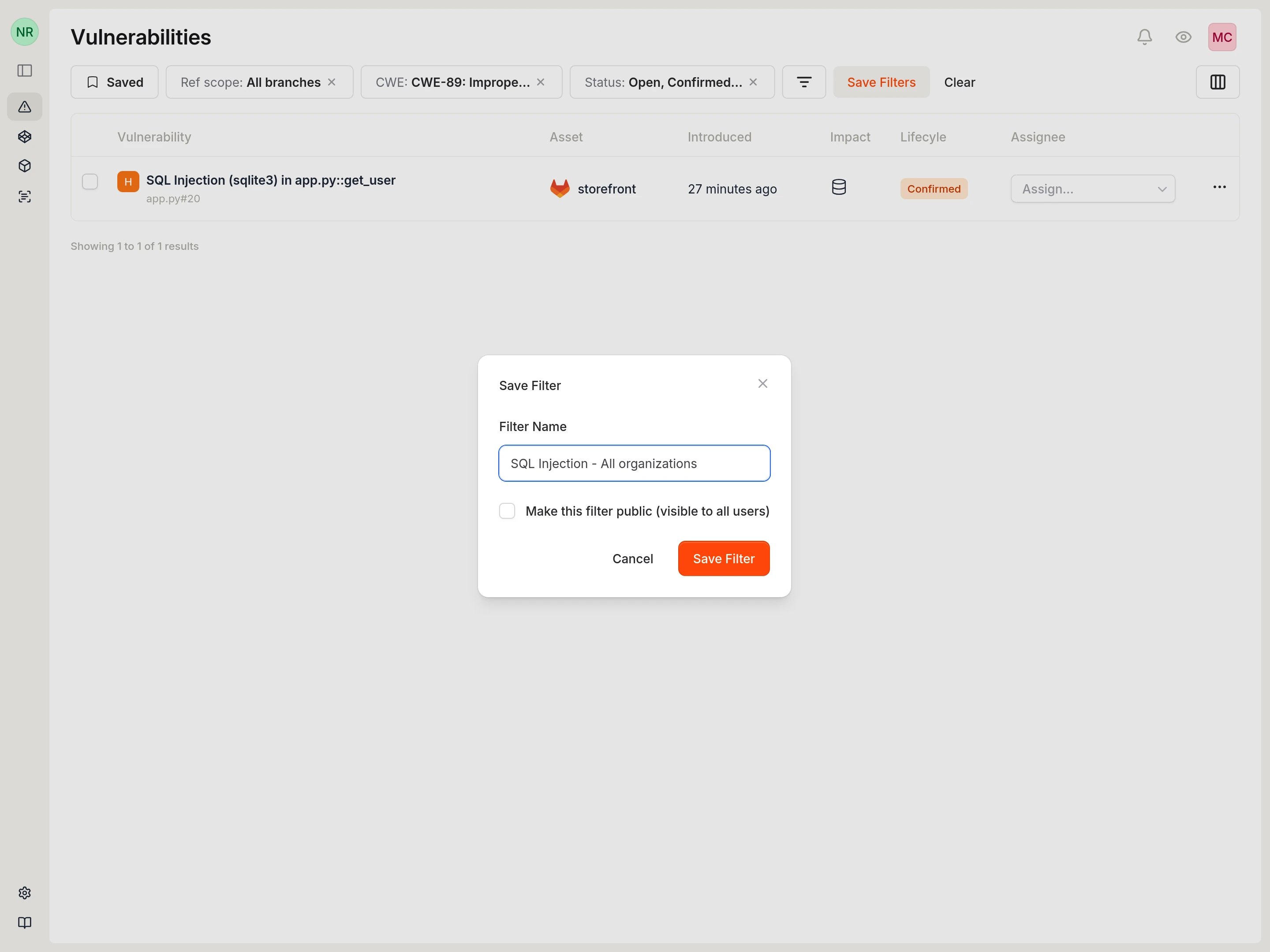 * **Filter Name**: A descriptive name to identify this filter combination
* **Make this filter public**: When enabled, all workspace members can see and use this filter
Select **Save Filter** to save.
## Access saved filters
Select **Saved** in the filter bar to view your saved filters. Filters are organized into two sections:
* **System Filters**: Built-in filters provided by Cysmiq
* **My Filters**: Custom filters you have created
* **Filter Name**: A descriptive name to identify this filter combination
* **Make this filter public**: When enabled, all workspace members can see and use this filter
Select **Save Filter** to save.
## Access saved filters
Select **Saved** in the filter bar to view your saved filters. Filters are organized into two sections:
* **System Filters**: Built-in filters provided by Cysmiq
* **My Filters**: Custom filters you have created
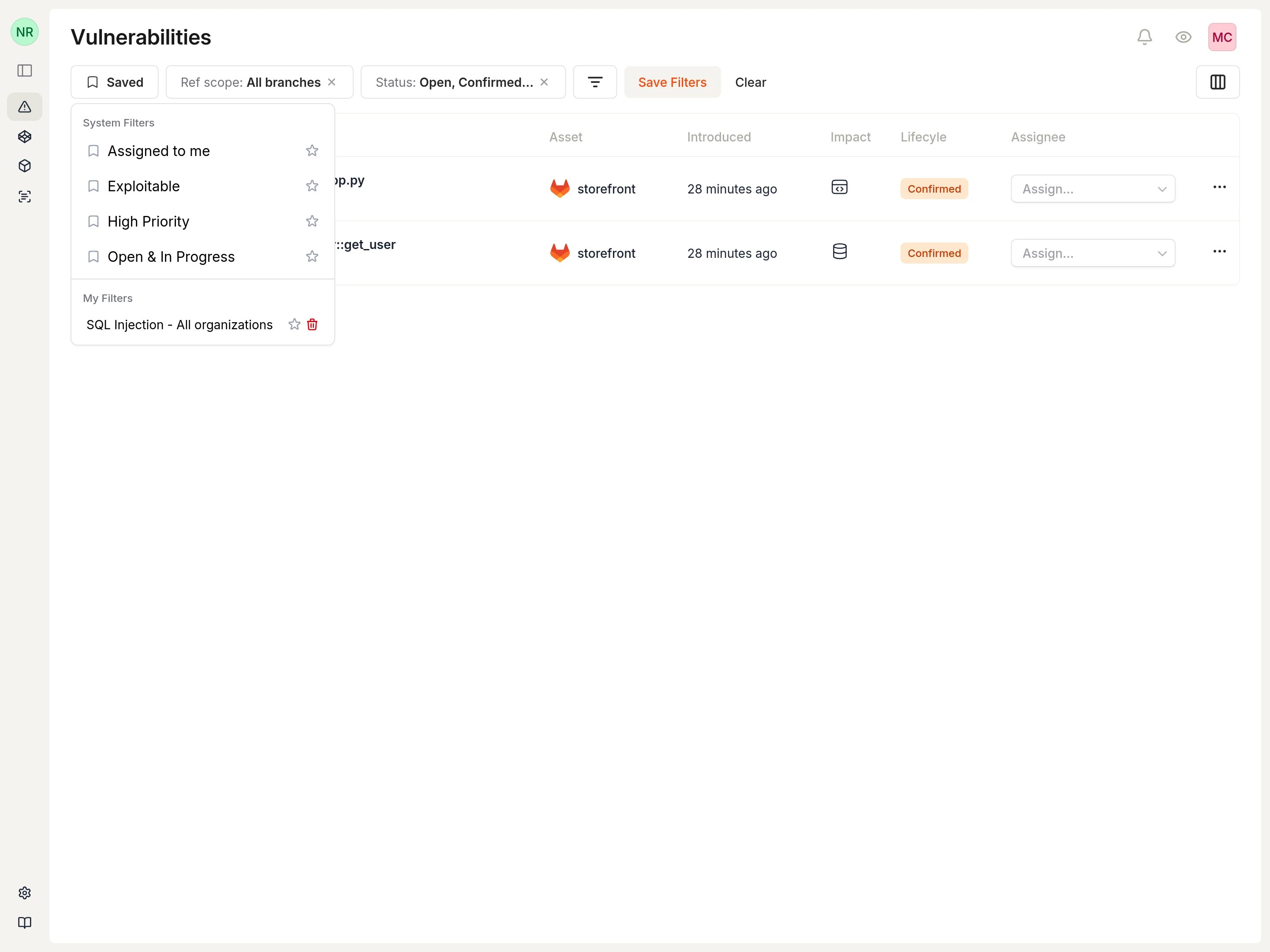 Select any filter to apply it immediately.
## Favorite filters
Add frequently used filters to your favorites by clicking the star icon next to any filter. Favorited filters display a filled star for quick identification and appear in the **Favorites** section of the sidebar for one-click access.
Select any filter to apply it immediately.
## Favorite filters
Add frequently used filters to your favorites by clicking the star icon next to any filter. Favorited filters display a filled star for quick identification and appear in the **Favorites** section of the sidebar for one-click access.
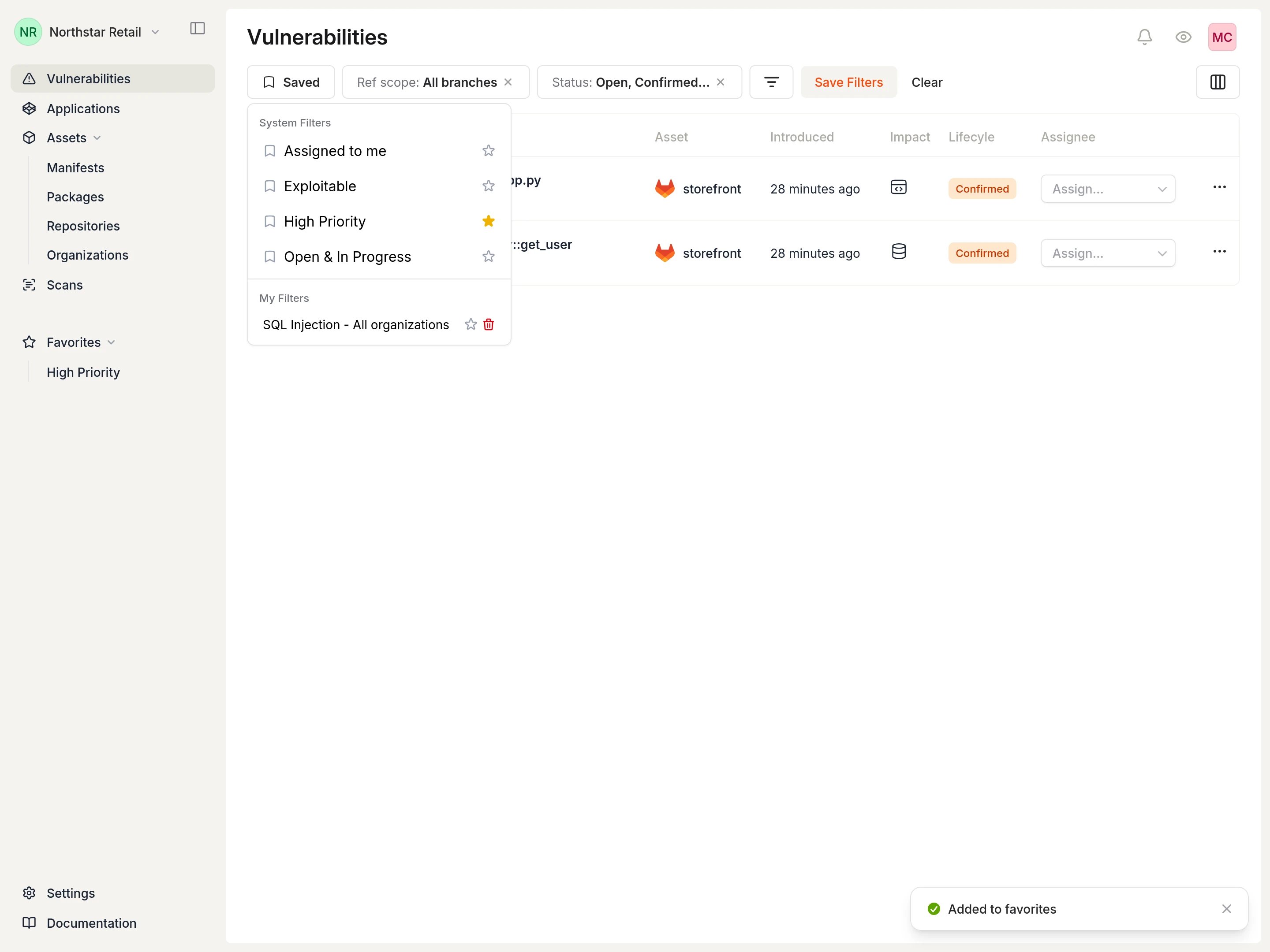 To remove a filter from favorites, click the star icon again.
## Delete a custom filter
To delete a custom filter you created, open the Saved filters panel and select the trash icon next to the filter name. System filters cannot be deleted.
## Tips
* Use specific names that describe both the filter criteria and purpose, such as "SQL Injection - Production Apps"
* Combine multiple filter types to create focused views for your workflow
* Share useful filters with your team by enabling the public option when saving
To remove a filter from favorites, click the star icon again.
## Delete a custom filter
To delete a custom filter you created, open the Saved filters panel and select the trash icon next to the filter name. System filters cannot be deleted.
## Tips
* Use specific names that describe both the filter criteria and purpose, such as "SQL Injection - Production Apps"
* Combine multiple filter types to create focused views for your workflow
* Share useful filters with your team by enabling the public option when saving