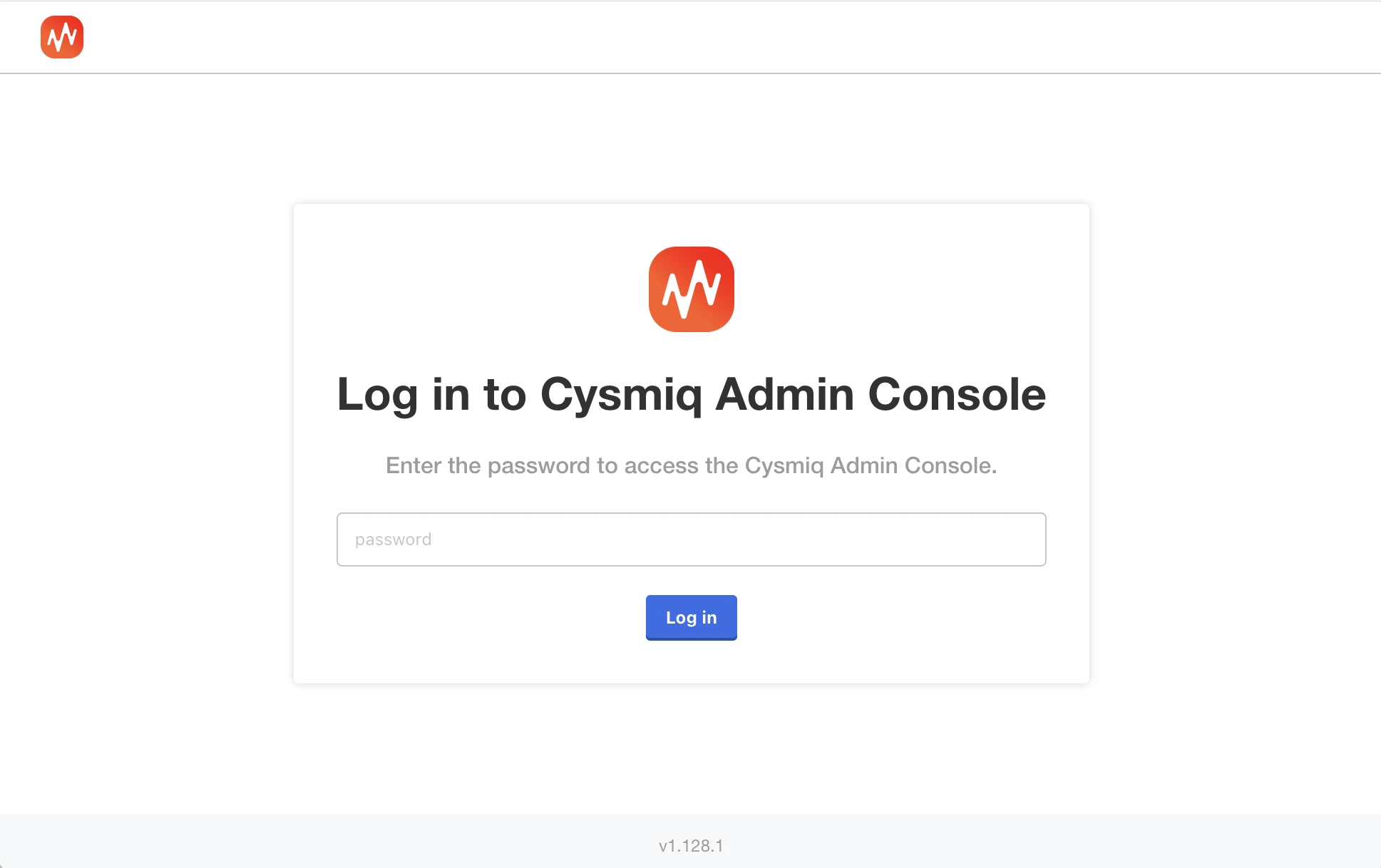
Run the install command provided during onboarding. It prompts you for a namespace and the Admin Console password.
kubectl kots install cysmiq/stable
Enter the namespace to deploy to: <namespace> • Deploying Admin Console • Creating namespace ✓ • Waiting for datastore to be ready ✓Enter a new password for the admin console (6+ characters): •••••••• • Waiting for Admin Console to be ready ✓ • Press Ctrl+C to exit • Go to http://localhost:8800 to access the Admin Console • To access the Admin Console again, run kubectl kots admin-console --namespace <namespace>
When the install completes, keep the terminal output. It includes the Admin Console access URL.
2
Open the Admin Console
Local access
If your workstation can reach http://localhost:8800, open it and log in with the password you set.
If you run kubectl on a remote VM and cannot access http://localhost:8800, expose the kotsadm service and access it via the node IP.
Expose the Admin Console with NodePort
kubectl edit svc kotsadm --namespace <namespace>
Change type: ClusterIP to type: NodePort, save, then run kubectl get svc -n <namespace> to find the assigned port.
3
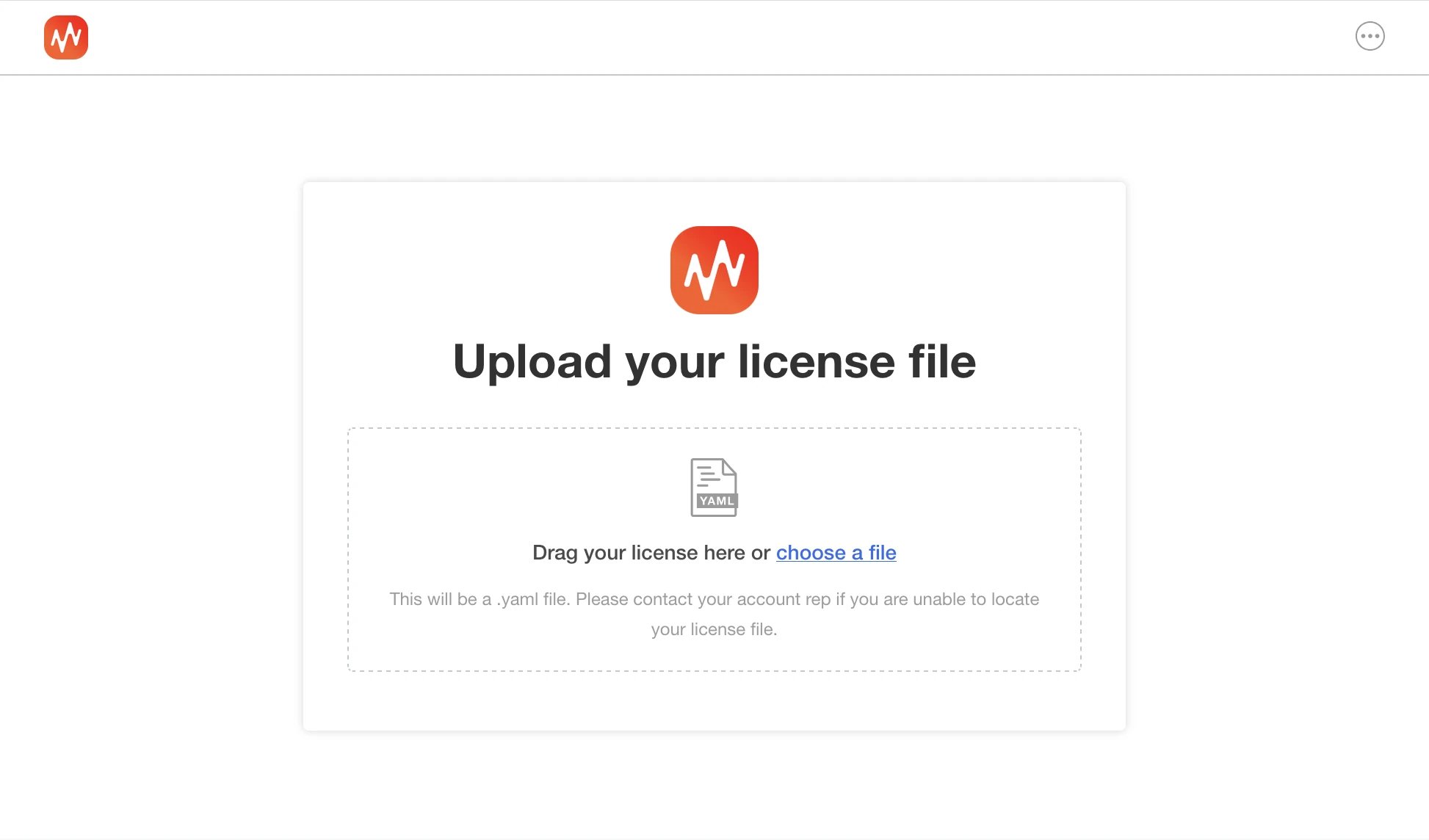
Upload the Replicated license
Upload the Replicated license file to continue.
Upload the Replicated license file
If you see a “Let’s get you started!” sidebar, first enter your Application Domain Name then scroll down and press Continue.
4
Configure Cysmiq
Ingress
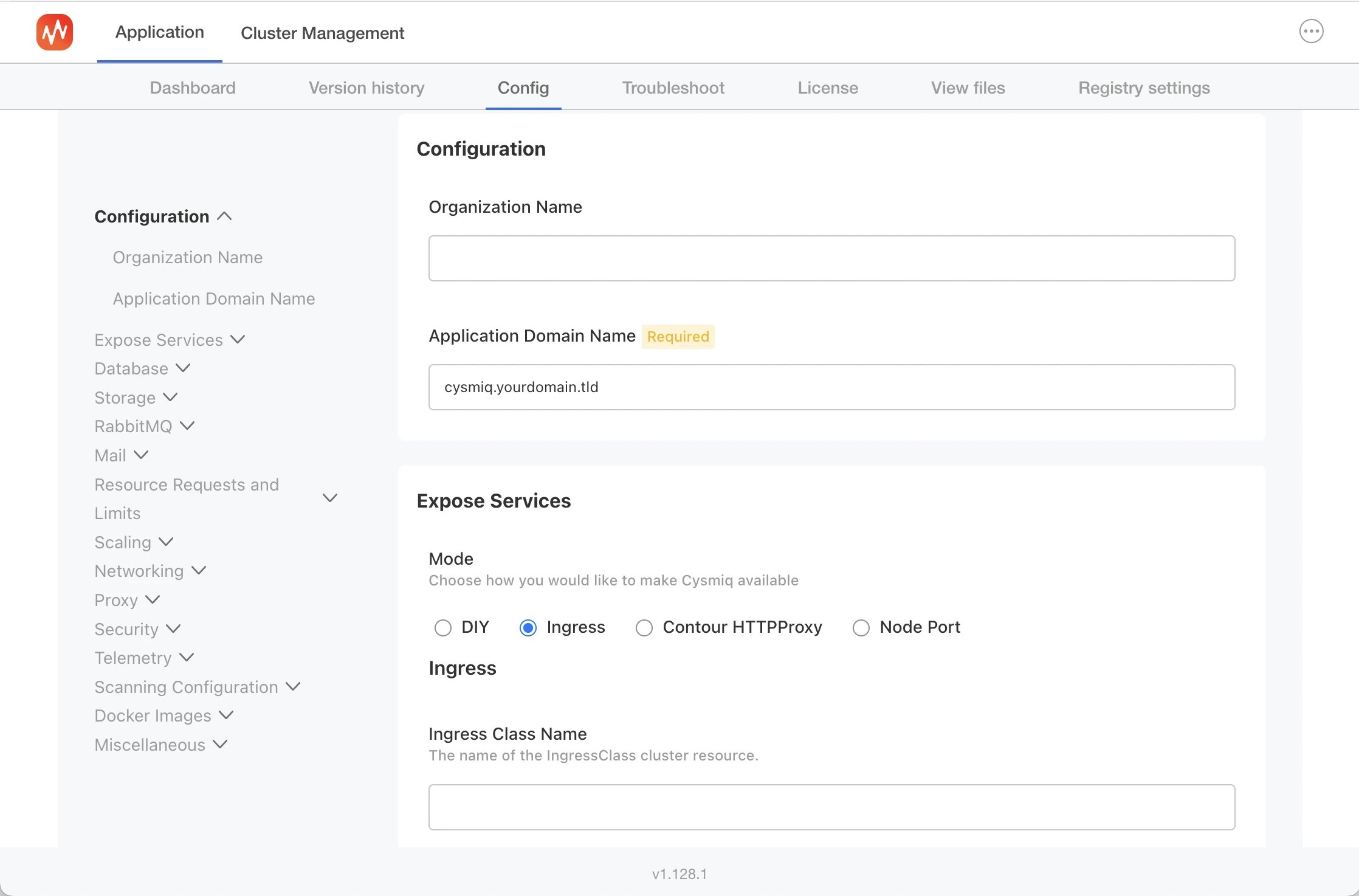
Open the Config tab and set the required fields, including Application Domain Name. Keep defaults unless you need custom storage, database, or exposure settings.
Configuration screen for domain and exposure settings
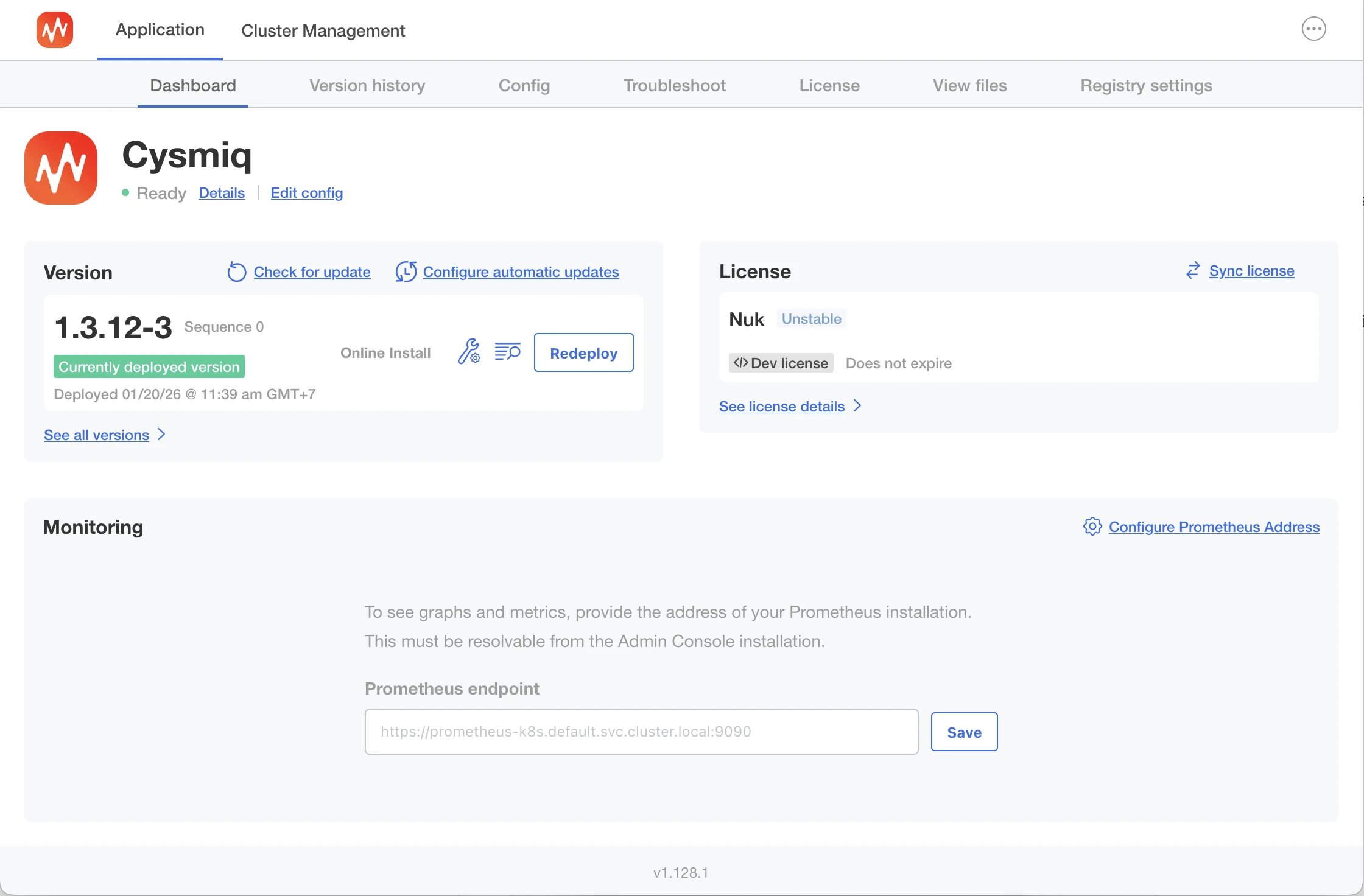
Review the preflight checks, resolve any failures, then continue.From the Admin Console dashboard, wait for the application status to reach Ready. You might see Missing or Deploying while the installation completes.
Admin Console dashboard while deployment is in progress
6
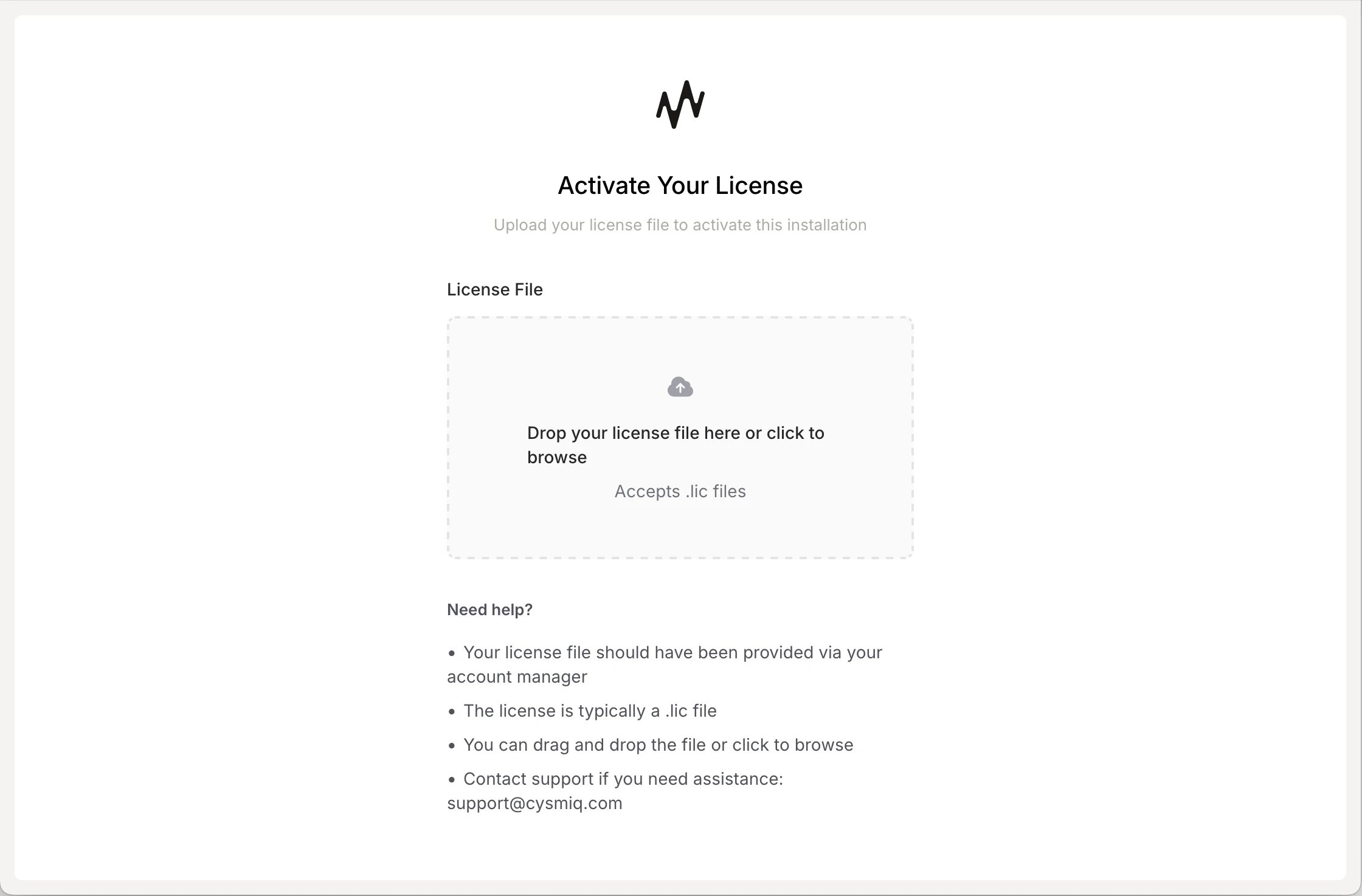
Activate the Cysmiq app license
Navigate to the domain you configured.Create your first admin account, then upload the Cysmiq application license to activate the installation.