

Prerequisites
- Owner role in the workspace
View members
Navigate to Settings → Members to see all workspace members.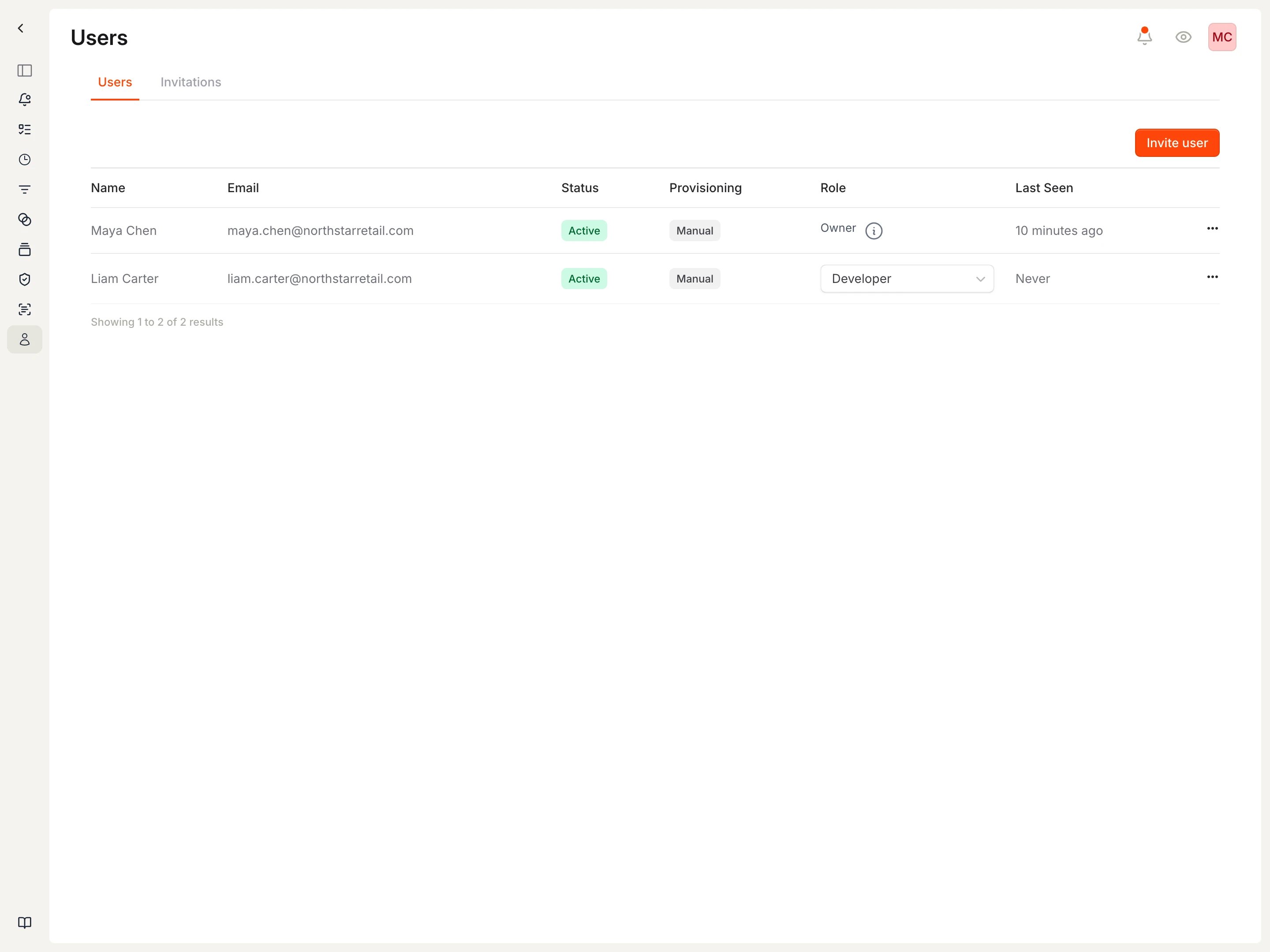
The Members page shows all users with their status and role.
- Name: Display name from the user’s profile
- Email: The email address used to sign in
- Status: Active (can access workspace) or Pending (invited but not yet signed in)
- Provisioning: How the user was added (Manual or SSO)
- Role: The user’s permission level
- Last Seen: When the user last accessed the workspace
Available roles
Manage a member
Select the actions menu (three dots) on a member row to access management options.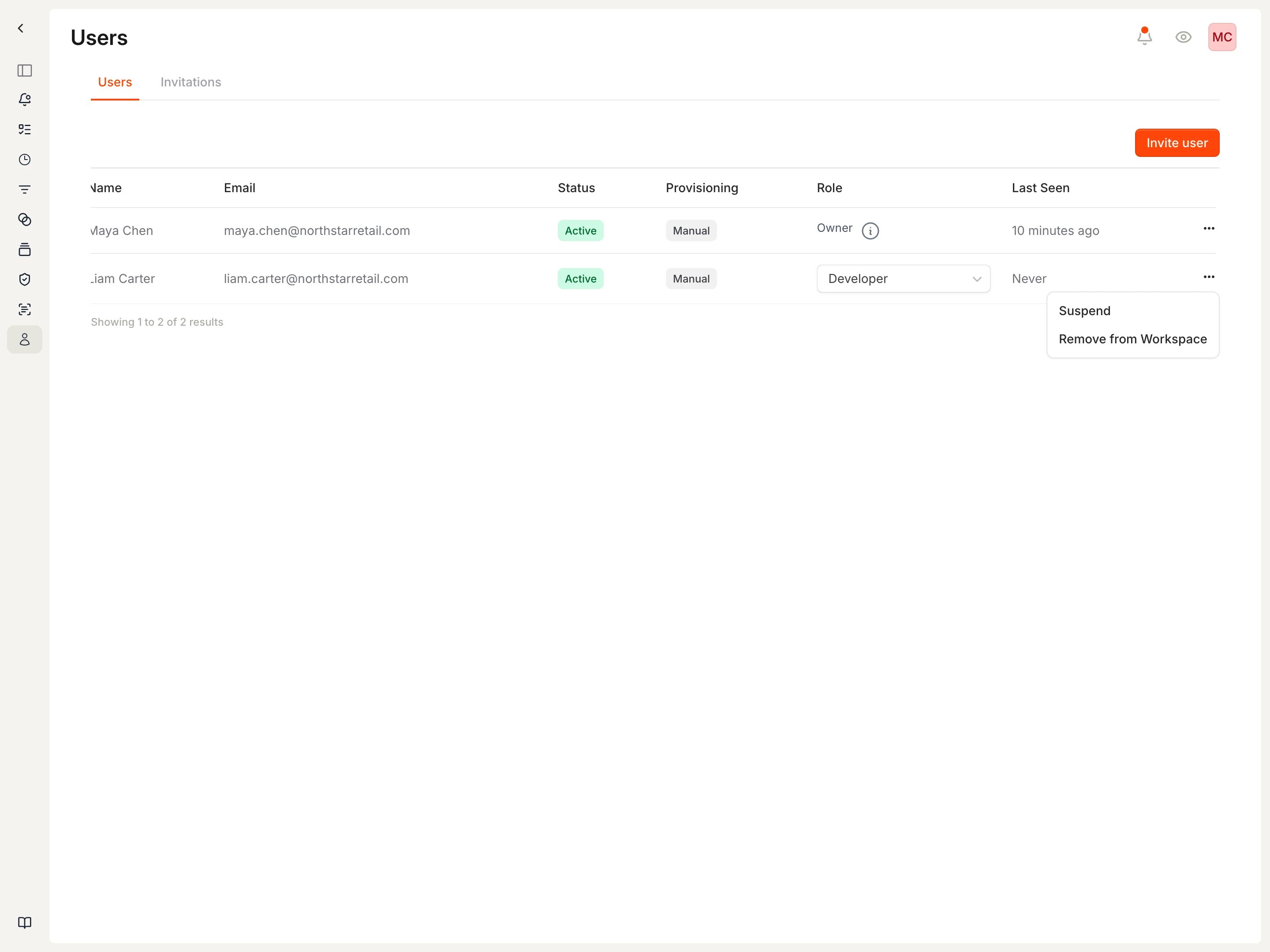
The actions menu provides options to suspend or remove a member.
Change a member’s role
- Find the member in the Users list.
- Select the role dropdown in their row.
- Choose the new role.
Suspend a member
Suspending a member revokes their access without deleting their account. Their vulnerability assignments and history are preserved.- Find the member in the Users list.
- Select the actions menu (three dots) in their row.
- Select Suspend.
Remove a member
Removing a member completely removes them from the workspace.- Find the member in the Users list.
- Select the actions menu (three dots) in their row.
- Select Remove from Workspace.
Related
- Invite your team: Add members and manage pending invitations
- Users and access: Understand roles and provisioning
- Workspaces: Understanding workspace isolation
- Security settings: Configure SSO and access policies